
Reading interaction notes and comments
Find and read your personal notes and public comments on an interaction
Getting started: If you’re not already viewing an interaction, first click the interaction in Search & browse or from one of your Reports.
Read interaction notes and comments:
Option 1: Hover over the blue circles at the bottom of the interaction's timeline. The note or comment appears in a pop-up bubble.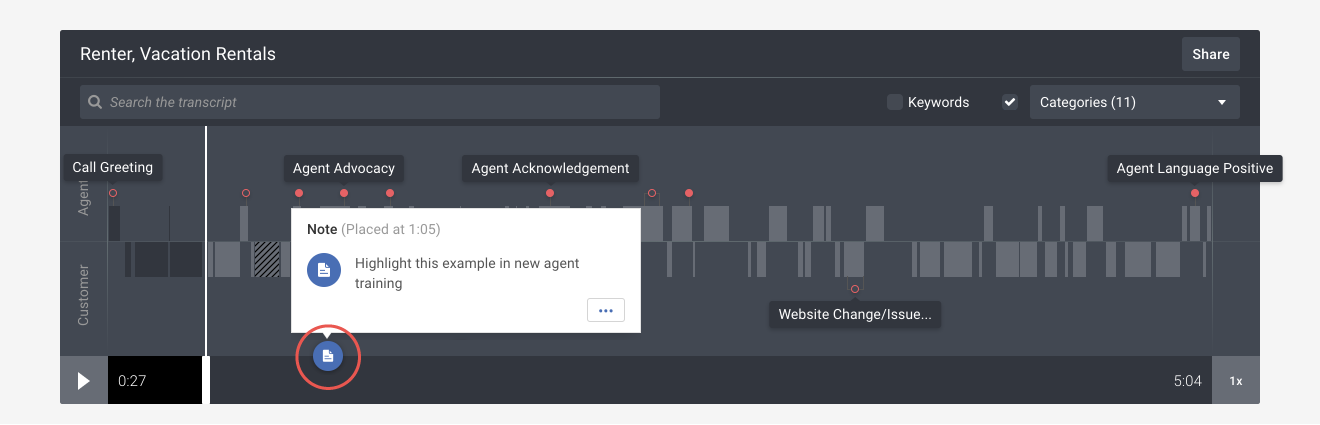
Tip: If you own the note or comment, you can edit or delete it through the More actions ( ••• ) button.

Tip: If you want to reply to a public comment, click the Reply link. The app will automatically scroll down to the comment in the interaction's transcript. Then type your reply to the comment (see second image below).


Option 2: Click on the My notes or Comments tab in the interaction's text transcript area. The notes or comments will appear in the left column.