Creating a new folder
Overview:
Create a new folder for organizing, filtering and sharing your content.
Getting started: If you're not already in a folder, first click on the Insights tab at the top right of the application.
Create a new folder:
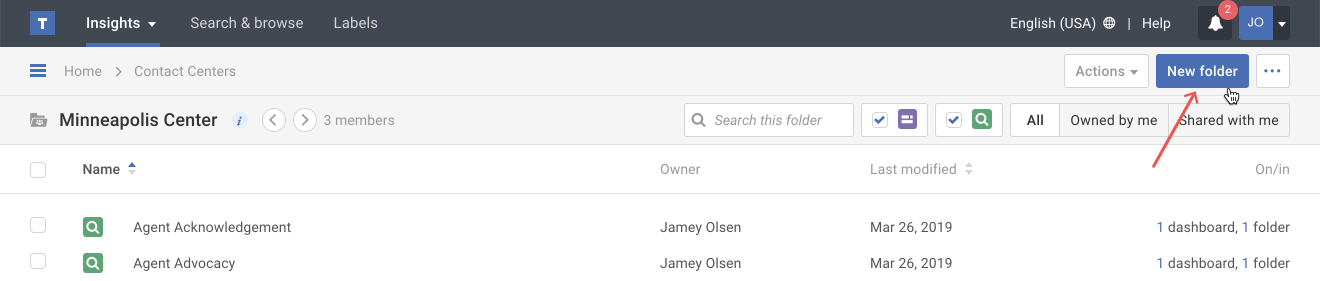
- Click on the New folder button in the upper right hand corner.
- In the pop-up screen, do the following:
a) Enter a folder name.
b) If you are creating a new folder inside an existing folder, you'll see the Placement option. Select Inside current folder to make this new folder a subfolder. Otherwise select Top level folder.
c) Click the Create button.
Tip: If your new folder name matches an existing folder name, you will see a warning message. If you need to create multiple folders with the same name, you can ignore this message.
Tip: Sharing folders can only be done with top level folders. If you are creating a new subfolder, anyone with access to the current folder will also see this folder.