
Add a condition to scheduled dashboard emails
Required: To allow users to share dashboards as emails, a Creovai account admin must configure external sharing options, then edit the user's profile to assign the Email Sharing Admin role.
Overview:
Surface critical issues promptly and reduce unnecessary emails by sending scheduled dashboard emails only when defined conditions are met.
Conditions can only be added to dashboards shared as scheduled emails, not dashboards shared as one-time emails. When defined conditions are met, the dashboard will be emailed at the scheduled time.
Because interactions may still be loading into Creovai at the time the email is sent, the email will only include data up until the previous day. Data from the day the email is sent will not be included.
Add a condition:
- Open an email schedule
Create a new scheduled email or open an existing schedule to modify it. - Add conditions to the email schedule
Click add conditions and define when this email should be sent.Note: The email will only include data up until the previous day. Data from the day the email is sent will not be included.
Elements of the conditions page: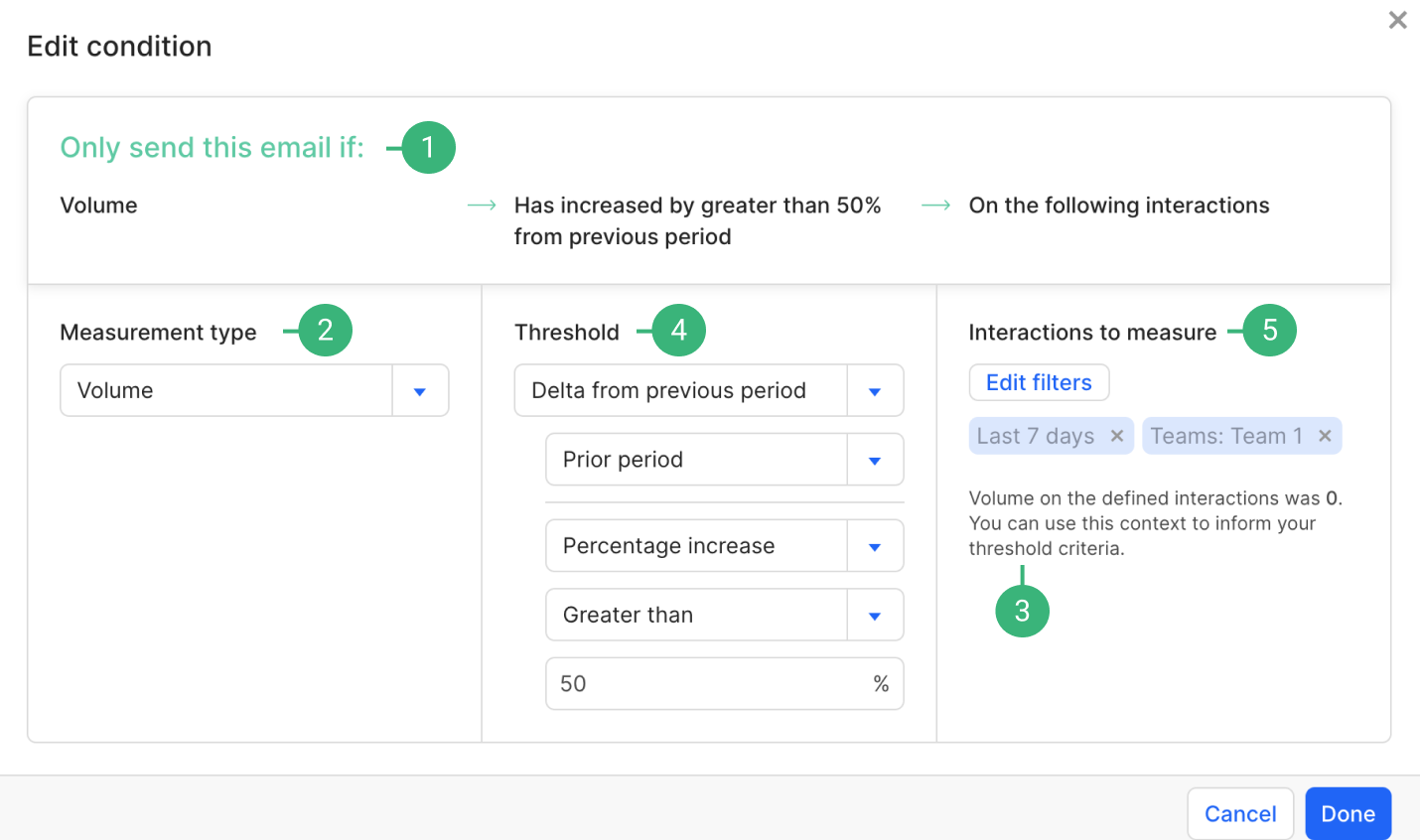
- Written summary of the condition. This will update as you define each section of the condition.
- Define the measurement for the condition. Choose from Volume, Subset as percentage of volume, Length, Silence time, Talk time, Score or Evaluation.
- Current measurement on the defined interactions. This provides context to help you decide what your threshold should be.
- Define the threshold that the measurement must meet or exceed to trigger the dashboard email. Choose from Fixed value or Delta from previous period (ex: Last 7 days)
- Add filters to define which interactions to measure for the condition.
Sample scheduled email with conditions:
This dashboard will be sent weekly on Mondays at 9:00 am CDT only if the average score of the QA evaluation dropped below 80% in the last 7 days.