What are dashboards?
Overview:
Dashboards contain a collection of reports to show detailed business insights side by side. You can create multiple dashboards. A dashboard is private by default, but can be shared with other Creovai users. Reports are created in search & browse and then easily added to your dashboard.
Dashboards makes it easy to:
- Organize your reports into groups for comparing side by side.
- Customize the arrangement and sizing of dashboard reports.
- Easily save and reference your Search & browse results so you don’t need to manually replicate the search each day.
- Share your saved dashboard with other Creovai users for collaboration and visibility to report groupings.
Elements of the Dashboard list:
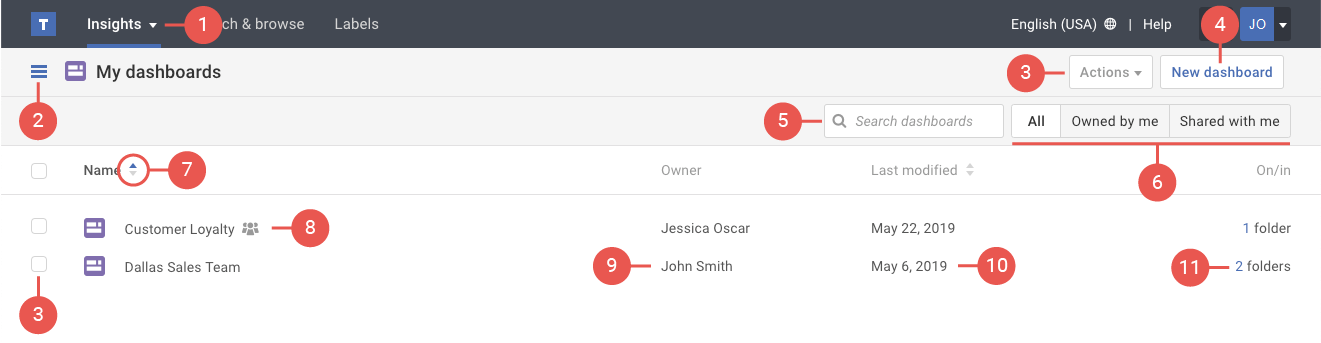
- Insights menu: provides an option to view My dashboards.
- Folder drawer: allows you to see all your folders in a list view.
- Actions: provides a menu of additional options for managing your dashboards.
- New dashboard: allows you to add a new dashboard.
- Search: allows you to quickly search the dashboard titles in the list.
- Filters: provides a quick way to filter the list to dashboards owned by you or shared with you.
- Sort: allows you to easily sort the dashboards by name or last modified date.
- Name: displays the name of the dashboard. Shared dashboards will have a shared icon.
- Owner: shows who owns the dashboard. You will have more available actions for dashboards owned by you.
- Last modified: displays the date when changes were made to the dashboard.
- On/in: shows how many folders the dashboard is in. To see which folders, click on the numeric value.
Elements of the Dashboard:
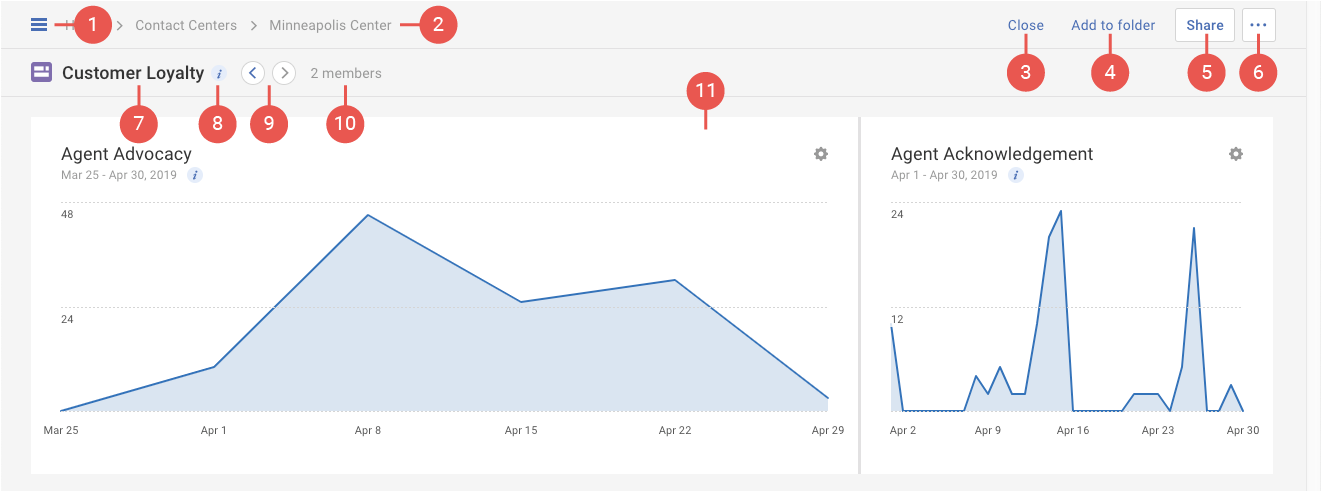
- Folder drawer: allows you to see all your folders in a list view.
- Breadcrumb: displays which folder the dashboard is in. You may click on the folder names to open that folder.
- Close: closes the dashboard and returns you to previous page you were looking at.
- Add to folder: allows you to add this dashboard to a folder.
- Share: allows you to share the current dashboard with other Creovai users.
- More actions ( ••• ): provides a menu of additional options for managing your dashboard.
- Dashboard title: displays the name of the opened dashboard.
- Information: when you hover over this icon, you'll see a description of the dashboard.
- Navigation buttons: click either button to advance to the next (or previous) dashboard in this folder.
- Shared dashboard: displays only when a dashboard is shared among Creovai users.
- Dashboard canvas: displays the reports contained on the current dashboard. This is the area where you can rearrange, resize, and remove reports.